
Microsoft Teams Rooms vs. BYOD: When Does a Dedicated Room Make Sense?
Posted by Video Conference Gear on 9/2/2026
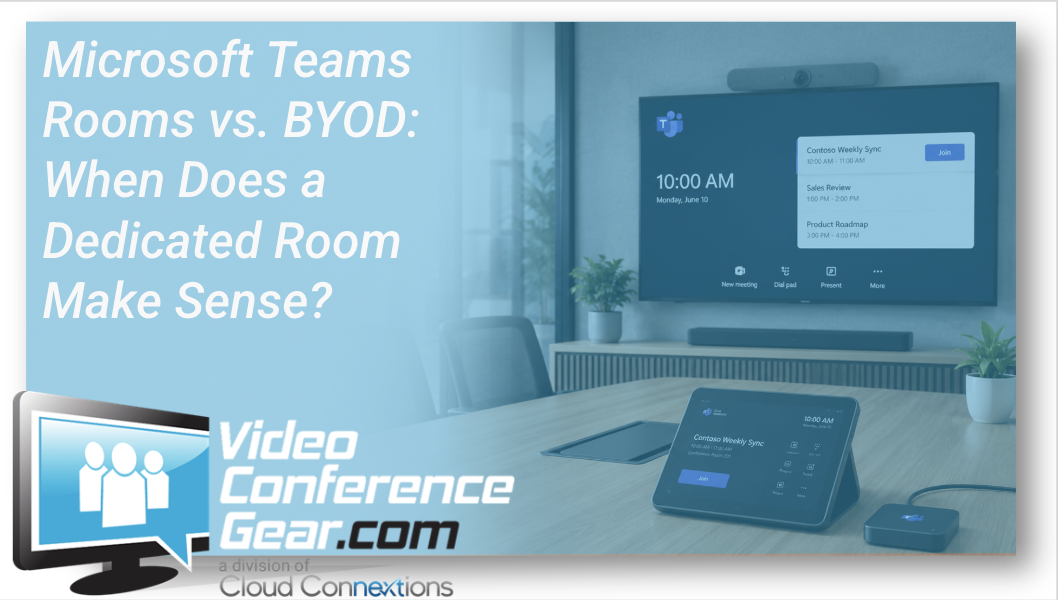
Walk into two conference rooms, and they may look almost identical.
Both have a display. Both have a camera. Both have microphones and speakers. Both can host a Microsoft Teams meeting.
But the experience behind those rooms can be completely different.
In one room, someone walks in, sees the scheduled meeting on the room controller, taps Join, and starts the call.
In the other, someone brings a laptop, connects it to the room's USB peripherals or docking system, selects the correct camera and audio devices, opens Teams, and starts the meeting from their computer.
The first is a dedicated Microsoft Teams Room.
The second is generally considered a Bring Your Own Device, or BYOD, room.
Neither approach is automatically better.
The right decision depends on how often the room is used, who uses it, what meetings take place there, how much consistency matters, and how IT wants to support the space.
What Is a BYOD Conference Room?
A BYOD room relies primarily on the user's laptop to run the meeting.
The room provides the shared technology. That may include a USB camera, video bar, microphone system, speakers, display, USB extender, docking station, or another connection point.
The employee brings the compute.
Microsoft currently defines a BYOD room as a room without meeting-enabled compute such as a Microsoft Teams Room or Surface Hub. Microsoft has also expanded its management capabilities for these spaces, allowing organizations to associate peripherals with rooms and gather certain usage, quality, and peripheral-status information.
That makes modern BYOD environments much more capable than the basic "USB cable hanging off the table" rooms many organizations remember.
And for the right application, BYOD can be an excellent solution.
Where BYOD Makes Sense
Consider a four-person huddle room used occasionally throughout the day.
Someone walks in with a laptop, connects to a video bar, starts the meeting, and leaves thirty minutes later.
Does that room necessarily need dedicated compute, a room controller, a resource account, and additional licensing?
Maybe not.
BYOD can work particularly well in smaller spaces where users are comfortable operating meetings from their laptops and where simplicity is more important than creating a completely standardized room experience.
It can also be attractive for organizations whose employees frequently use different meeting platforms.
One meeting might be Teams. The next might be Zoom. Then a customer sends a Webex invitation.
Using the employee's laptop provides a level of platform flexibility because the computer is already capable of running the applications the user normally works with.
But convenience for one user is not the only consideration.
When Dedicated Microsoft Teams Rooms Begin to Make More Sense
Now imagine the executive conference room.
Twelve people are waiting.
The CFO walks in two minutes before the meeting.
Nobody wants to ask who brought the laptop.
Nobody wants to find the USB cable.
Nobody wants to figure out whether Teams is using the laptop microphone instead of the ceiling microphones.
They want to walk in and start the meeting.
That is where a dedicated Microsoft Teams Room starts to demonstrate its value.
Microsoft Teams Rooms are purpose-built shared meeting-room systems available on Windows and Android platforms. Microsoft positions them around a consistent room experience that includes scheduled meetings and one-touch joining.
The room itself becomes the meeting device.
That distinction matters in spaces used by many different employees.
Instead of every user introducing their own laptop, drivers, settings, applications, cables, battery levels, and operating-system quirks into the room, the meeting environment can remain much more consistent.
Think About the User Experience
One of the easiest ways to decide between BYOD and a dedicated room is to ask a simple question:
How much responsibility do we want to give the person walking into the room?
In a BYOD environment, the user is typically responsible for launching the meeting and connecting their computer to the room technology.
In a dedicated Teams Room, the scheduled meeting can appear directly on the room interface.
Microsoft's current Teams Rooms environment supports one-touch joining for Teams meetings and can also support joining certain third-party meetings when the room and environment are appropriately configured.
For frequently used shared spaces, reducing those little points of friction can become important.
A conference room might host six or eight meetings every day. Multiply that across 50 rooms and hundreds of employees, and consistency starts becoming more than a convenience.
IT Has a Different Perspective
Users tend to think about whether the room worked for today's meeting.
IT has to think about whether 100 rooms will work next month.
That changes the decision.
A standardized Teams Room deployment can provide IT with a more purpose-built environment for managing room systems, monitoring device health, maintaining configurations, and supporting meeting spaces across locations.
But BYOD should not automatically be dismissed as unmanageable.
Microsoft has continued adding visibility into BYOD spaces through Teams Pro Management, including room and peripheral inventory and certain utilization, quality, and device-status reporting.
The question is therefore not simply "managed versus unmanaged."
It is how much control, consistency, automation, and supportability does this particular room require?
Room Importance Matters as Much as Room Size
A small room does not automatically mean BYOD.
A large room does not automatically mean a dedicated Teams Room.
Usage matters.
An eight-person room used once every few days might operate perfectly well as BYOD.
A four-person room beside the CEO's office that hosts critical meetings all day may justify a dedicated experience.
Look at who uses the room, how frequently they use it, how important the meetings are, and how damaging downtime would be.
Then design accordingly.
You May Want Both
For many organizations, the right answer is not choosing BYOD or Teams Rooms company-wide.
It is creating standards for both.
Huddle spaces might use a straightforward BYOD design.
Standard conference rooms might become dedicated Microsoft Teams Rooms.
Executive rooms may receive additional audio, camera, control, or multi-camera capabilities.
Training rooms and divisible spaces may require completely different architectures.
The goal of standardization should not be making every conference room identical.
The goal should be creating repeatable room types that employees understand and IT can support.
Start With the Workflow, Then Choose the Technology
It is tempting to begin a conference-room project by comparing cameras, video bars, room kits, and controllers.
Start one step earlier.
Ask how employees actually use the room.
Do they primarily use Teams?
How frequently do guests join from other platforms?
Does the room have a calendar resource?
How many meetings happen every day?
Who supports the room when something goes wrong?
Does the organization need centralized management?
How costly is meeting downtime?
Once those questions are answered, the decision between BYOD and a dedicated Teams Room becomes much clearer.
At Cloud Connextions, we help organizations evaluate existing meeting spaces, determine where BYOD makes sense, identify where dedicated room systems provide more value, and build repeatable conference-room standards around actual workflows rather than forcing every space into the same design.
Sometimes the smartest conference room is the simplest one.
Other times, asking twelve executives to figure out which USB cable runs the boardroom is simplicity in theory, not in practice.